Installing
Quick start
- Root the TV and install the Homebrew Channel.
- Clone this repository on a computer on the same network as the TV.
- Build the ARM server and TV app with the webOSbrew SDK, as described below.
- Run
native-tv/lifecycle/deploy.sh <tv-ip>from the repository root. - Open
http://<tv-ip>:8080/in a browser.
That's it. The dashboard is ready to use.
Requirements
- A rooted LG webOS TV (Root tool here) with the Homebrew Channel.
- A computer on the same network with Git, Bash, Python 3, CMake and a compatible webOSbrew native SDK. A source install needs the ARM build of the server, its metrics worker and the TV app. The TV does not need internet access during installation.
The MQTT bridge also needs an MQTT broker on the network. Home Assistant's Mosquitto add-on is one option, but any compatible MQTT broker works.
The models confirmed so far are listed under Tested TVs. LG names its webOS versions two ways; webOS version numbers gives both.
Install steps
1. Get the files
Tip
Git is required. On Windows, install Git for Windows, which also provides the Git Bash window used by the commands below. macOS and most Linux distributions already include Git or make it available through their standard package manager.
Download the project onto a computer on the same network as the TV.
git clone https://github.com/ihtisham1211/native-tv.git
cd native-tv
2. Install the dashboard
Find the TV's address under Settings → Network on the TV, or in the router's list of devices. The installer uses SSH when key-based login to root@<tv-ip> works (the computer's own keys, or the key named by NATIVETV_SSH_KEY in ~/.config/nativetv/deploy.env), and otherwise falls back to the Homebrew Channel's telnet. It never asks for an SSH password.
Caution
Rooting an LG TV will often open an unauthenticated telnet server by default, leaving a root shell open on the local network. It is good practice to turn telnet off and turn SSH on, for more secure access — moving from telnet to SSH takes about five minutes and is strongly recommended.
Build the server and the TV app from the repository root using a compatible webOSbrew native SDK:
python3 native-tv/build.py --sdk /path/to/arm-webos-linux-gnueabi_sdk-buildroot
Do not add --service-only: it leaves out the TV app, which deploy.sh packages too, so the deploy would stop.
The default output is native-tv/build-webos. A different build directory can
be selected with --native-build=DIR during deployment. Missing or invalid ARM
builds fail locally before connecting to the TV. The server is the native
nativetv-daemon; no Node runs on the TV. webOS 4 is the oldest supported
version (webOS 2.2 and 3.x are not supported). Hardware acceptance currently
covers a B3 on webOS 10.3.2.
Then, from the repository root in a terminal:
native-tv/lifecycle/deploy.sh <tv-ip>
For example:
native-tv/lifecycle/deploy.sh 192.168.1.50
The script takes about ten seconds to copy the server files and verify that the service is running. Once complete:
- In your browser: Open
http://<tv-ip>:8080/on any phone, tablet, or computer on your home network. - On the TV: Open the new Native Tv tile on your TV's home screen using your remote (see The TV app). Not every TV accepts the app, and without it the dashboard is still open from a phone or computer.
Tip
Static IP recommendation: Reserving a fixed DHCP IP address for the TV in your home router settings ensures the dashboard address never changes.
Note
Private & local by default: The server runs directly on the TV and talks only to your local network. No analytics or telemetry leave your home. The server reaches the internet only for features that need it: the Homebrew app catalogue and its downloads, and Native Tv Home's titles and posters.
Configuration options
Native Tv can be configured in two ways:
- On-screen setup in the TV app (Recommended): An easy, remote-driven setup wizard right on the TV screen.
- Configuration file and flags (Command line / Headless): A declarative
config.jsonfile and command-line options for headless setups, automation, or pre-configured installs.
Option 1: On-screen setup in the TV app
When Native Tv is installed from the Homebrew Channel, or deployed with a config.json seed (see Option 2), opening the app on the TV for the first time starts an interactive setup wizard designed for the remote. A plain deploy.sh install without a seed keeps the defaults and shows no wizard.
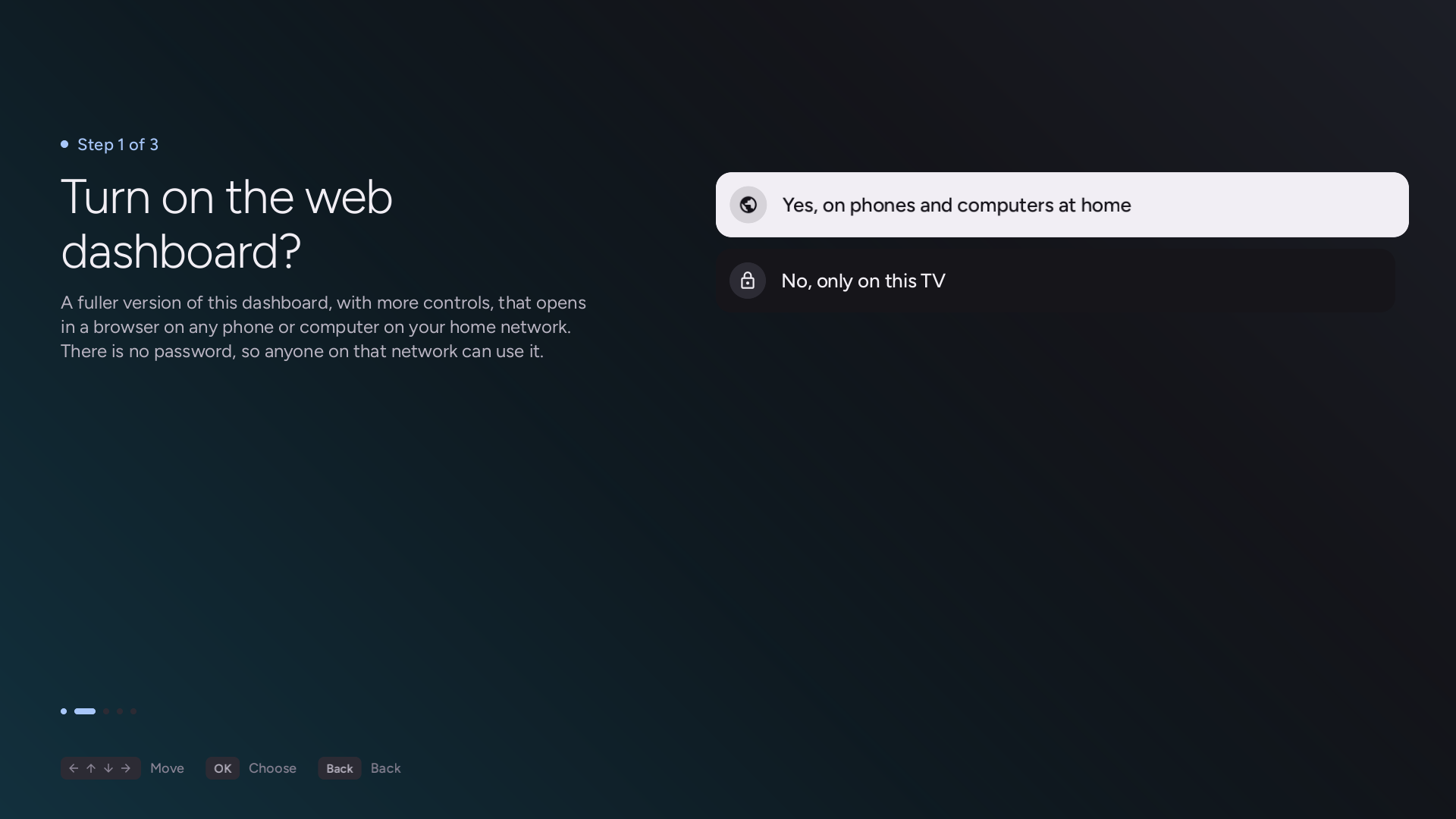
Choosing whether the web dashboard is open to devices on the home network or TV-local only.
The wizard asks you to name the TV (it suggests its model's series, such as B3) and then guides you through four key choices:
- Admin PIN: Four digits that the TV and the web dashboard ask for before the risky actions; the step is skipped when the TV already has a PIN. See The TV app.
- Web dashboard access: Choose between opening the web dashboard to phones and computers on your home network, or keeping it private to this TV only (
127.0.0.1). - Home Assistant integration: Connect your TV to Home Assistant via MQTT. The TV displays a QR code to scan with your phone, allowing you to enter your MQTT broker credentials easily from your mobile browser without typing on the TV remote. An on-screen keyboard beside the code takes them from the remote instead.
- Active Standby (Always-on): On TVs that support Always Ready / Active Standby (such as the LG C2 or G2), choose whether Native Tv and Home Assistant remain connected with the screen off so the TV can be controlled and turned back on over the network.
Any choice made during setup can be changed at any time from the TV app's Settings tab or the web dashboard. For a full walkthrough with screenshots, see The TV app setup wizard.
Option 2: Configuration file and flags
For headless installs, multi-TV households, or users who prefer configuring files directly, Native Tv reads its settings from /var/lib/tvweb/config.json on the TV.
To pre-configure a TV before installation, create a native-tv/lifecycle/config.json file (or native-tv/lifecycle/config.<tv-ip>.json if deploying to multiple TVs) in your cloned repository before running deploy.sh. The installer automatically seeds the TV with that configuration on first deploy, and a first deploy also shows the setup screens on the TV the first time its app is opened.
Core settings
These are the most common properties you can set in config.json:
| Property | Default | Description |
|---|---|---|
port |
8080 |
Port for the web dashboard and REST API. Also set under Server → Advanced → Dashboard port; the port after it (port + 1) and the one after that (port + 2) serve the phone handoff and the icons. |
host |
"::" |
Bind address. "::" listens dual-stack (IPv4 and IPv6), "0.0.0.0" listens on all IPv4 interfaces, and "127.0.0.1" keeps the dashboard private to the TV only. |
token |
"" |
Optional access token. When set, every web dashboard visit and API request requires ?k=<token>. The TV app automatically embeds this token into its phone pairing QR code. |
allowControl |
true |
When false, disables remote TV controls (volume, inputs, screen on/off, app launch, toast). |
allowPower |
true |
When false, hides and refuses power off, power on, and reboot actions. |
mqtt.enabled |
false |
Enables the Home Assistant MQTT bridge. |
mqtt.host |
"" |
IP address or hostname of your MQTT broker (e.g., "192.168.1.5"). |
mqtt.port |
1883 / 8883 |
Broker port. Defaults to 1883 (plain) or 8883 when mqtt.tls is true. |
mqtt.tls |
false |
Encrypts the broker connection with TLS. |
mqtt.username |
"" |
MQTT username (use a dedicated user restricted to the TV's topics). |
mqtt.password |
"" |
MQTT password. |
mqtt.topicPrefix |
"lgtv" |
Root segment for published state topics and commands. |
mqtt.discoveryPrefix |
"homeassistant" |
Home Assistant MQTT discovery prefix. |
An example config.json with Home Assistant enabled:
{
  "port": 8080,
  "token": "my-secret-token",
  "mqtt": {
    "enabled": true,
    "host": "192.168.1.50",
    "username": "lgtv",
    "password": "broker-password"
  }
}
Advanced and hardware settings
Advanced settings can be adjusted in config.json or through the dashboard's Server and Tools tabs:
| Property | Default | Description |
|---|---|---|
panel |
Auto | Overrides panel detection with "oled" or "lcd" if automatic detection does not detect your panel correctly. |
logging.level |
"info" |
Server logging verbosity: "quiet" (warnings/errors only), "info" (standard), or "debug" (verbose diagnostics). |
ntp.server |
"" |
Hostname of an NTP server (e.g., "pool.ntp.org") to synchronize the TV's clock on boot and hourly. |
syslog.server |
"" |
Remote syslog server address to forward TV and Native Tv logs over RFC 5424 UDP (port 514). |
allowTileHiding |
false |
Experimental: allows hiding built-in LG system tiles and apps on the home screen. |
allowExperimentalHome |
false |
Experimental: offers Native Tv Home on webOS 11, where it is untried. |
allowExperimentalScreensavers |
false |
Experimental: allows custom QML screensavers on webOS 12 and newer, which are untried there. Named allowOnWebos10 before 0.105; that name is still read, and renamed when the server starts. |
allowNetworkDebugger |
false |
Exposes the webOS app inspector on port 9998 over the local network for developers using ares-inspect. |
iconServer |
false |
Serves installed apps' icons, read-only and without a token, at http://<tv-ip>:8082/icons/<appId>.png (the dashboard's port plus two), for launchers on other devices. Home Assistant's Launch App select then lists each icon's address in app_icons. Also switched from the Home Assistant tab. |
Command-line flags
Installer flags (native-tv/lifecycle/deploy.sh <tv-ip> [flags]):
--app: Ensure the Native Tv app tile is installed on the TV home screen.--no-app: Omit installing the TV app tile (runs the background server only).--telnet: Force connection over telnet even if SSH is available.--no-persist: Run the server only until the next TV reboot (skips the boot persistence hook).--native-build=DIR: Select the required ARM service build; defaults tonative-tv/build-webosrelative to the repository root.
Daemon flags (nativetv-daemon [flags]):
Used when running the server directly in testing or custom scripts; on the TV tvwebctl starts it:
--config <path>: Loads a specific configuration file instead of/var/lib/tvweb/config.json.--heartbeat <path>: The file the daemon touches so the watchdog can see it is alive.--workers <count>: Blocking workers, 1 to 64. Each live Luna subscription holds one, so a state-enabled daemon raises it to 12 if lower.--listen: Serves the dashboard on the configured host and port.--assets-root <path>,--proc-root <path>,--system-root <path>: Where the pages, procfs and the root filesystem are read from, for tests.--help: Lists the one-shot maintenance flags (--release-home,--restore-remote-keysand the like) thattvwebctland the boot hook run.
Logging verbosity is the logging.level setting (quiet, info or debug); the MQTT bridge and remote control are the mqtt.enabled and allowControl settings.
Troubleshooting
- Connection refused during install. The installer tries key-based SSH first, then telnet, and never prompts for an SSH password. If SSH has no key for the TV, make sure telnet is toggled ON in the TV's Homebrew Channel app settings, or run
native-tv/lifecycle/deploy.sh <tv-ip> --telnetto connect directly over telnet. - Nothing on port 8080. On the TV,
/var/lib/tvweb/tvwebctl statussays whether the server is running and/var/lib/tvweb/tvweb.logsays why it is not. - Panel hours and OLED Care missing on an OLED TV, or showing on an LCD one. Panel detection went the wrong way: set
"panel": "oled"or"panel": "lcd"innative-tv/lifecycle/config.jsonbefore a first deploy, or in/var/lib/tvweb/config.jsonon a TV that already has one.